
Background
OC Direct 2.2.4 2.3.0 has several benefits including:
- Detects newly added printers without restarting OC Direct
- Better support for asynchronous, concurrent printing to multiple printers
- Supports USB device communication without requiring Java support in the browser
Support for leading scales including Mettler Toledo, Stamps.com and Dymo - Improved HTML printing
- Better support for Dymo printers
- Improved support for PDF printing (future release)
- Compatible with Windows 11
Installing OC Direct 2.2.4 and 2.3.0
You will need to install java before you can install OC Direct
NOTE: Please refer to the Notes & Troubleshooting section at the end of this article in case you have any issues with installing OC Direct 2.2.4/ 2.3.0
Uninstalling OC Direct
These are the steps to remove the currently installed OC Direct version for Windows.
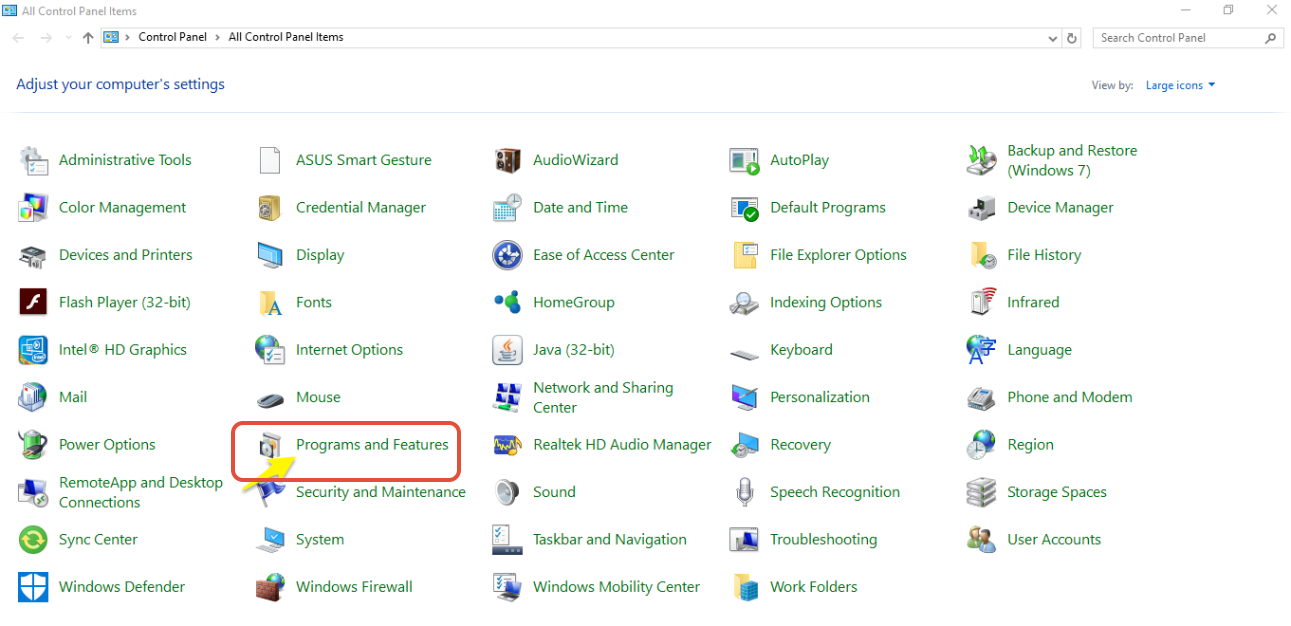
1. Go to Control Panel and select Programs and Features.
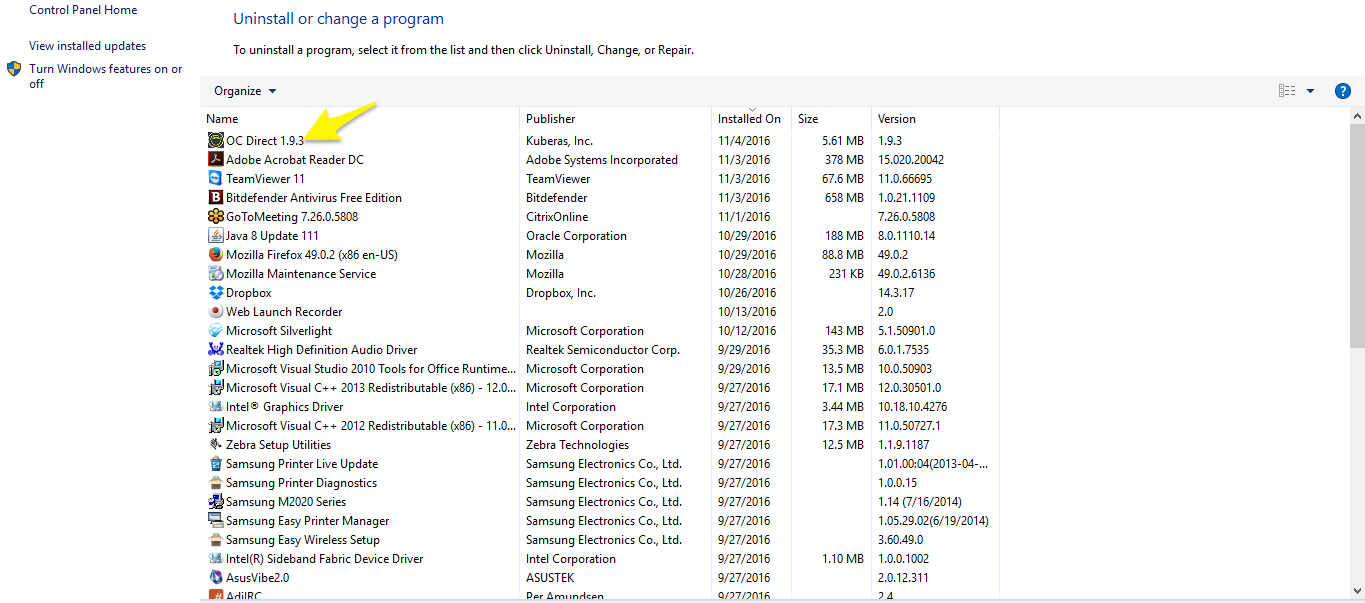
3. Once OC Direct is uninstalled go to the next step below.
OC Direct 2.2.4 and 2.3.0 Installation
These are the steps to install the current OC Direct version (e.g. 2.0.1) for Windows For instructions on Mac OS X, please visit OC Direct 2.0.3 Installation Guide (Mac OS X).
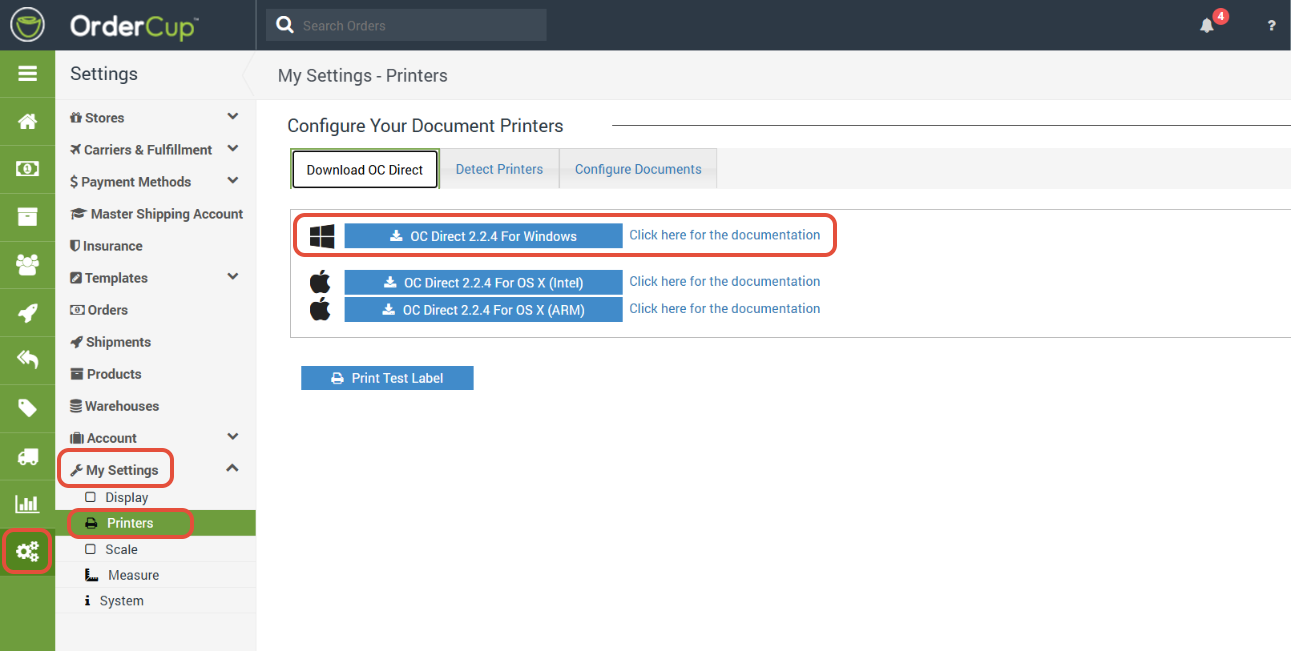
1. In OrderCup, go to Settings → My Settings→ Printers and click on the Download OC Direct Tab
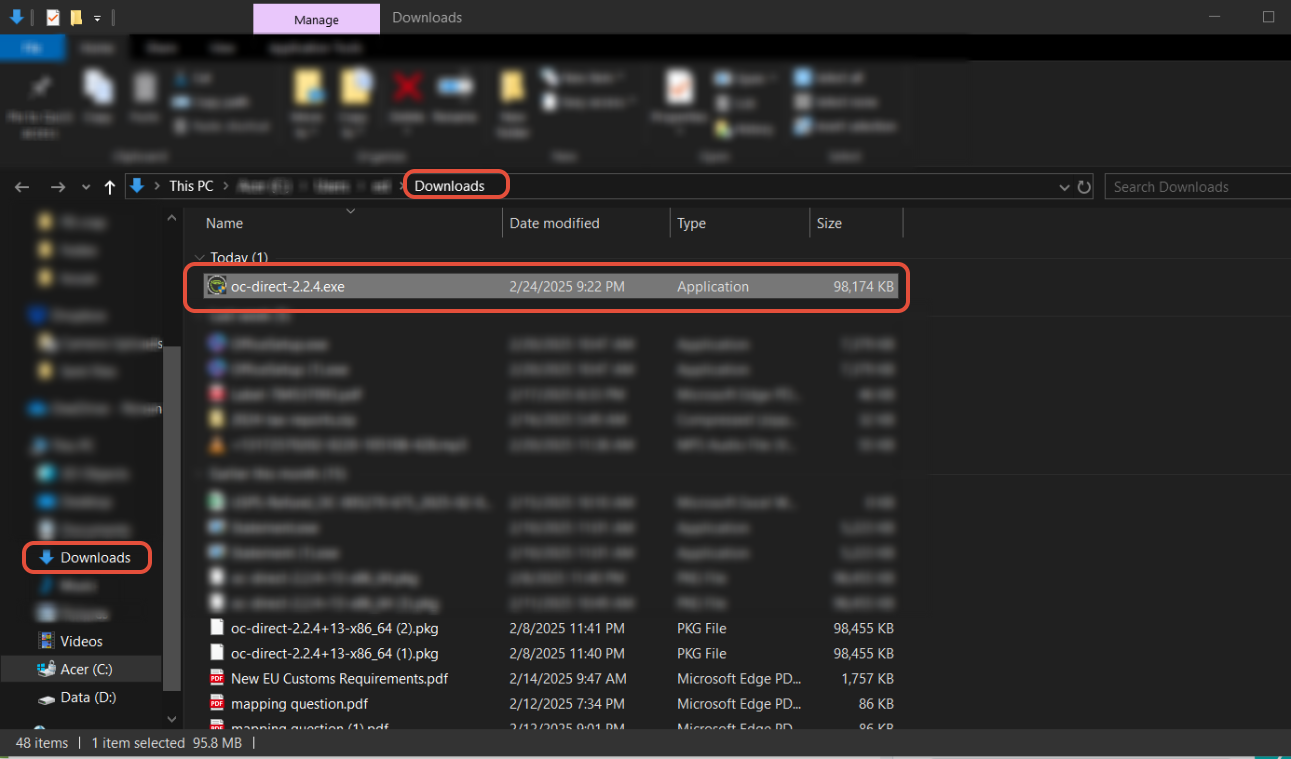
Go to you downloads folder and double click the OC Direct Exe file to start the install
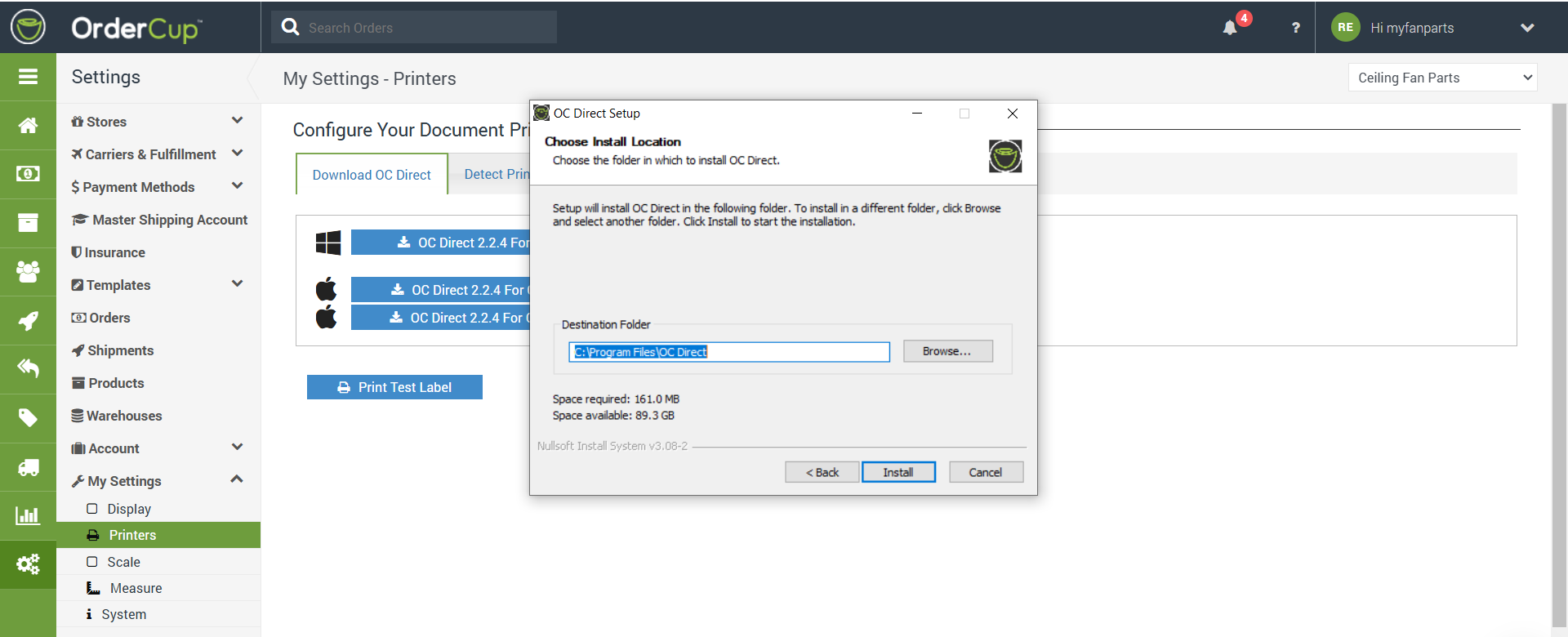
Once the installation screen comes up click next and follow the on screen prompts.
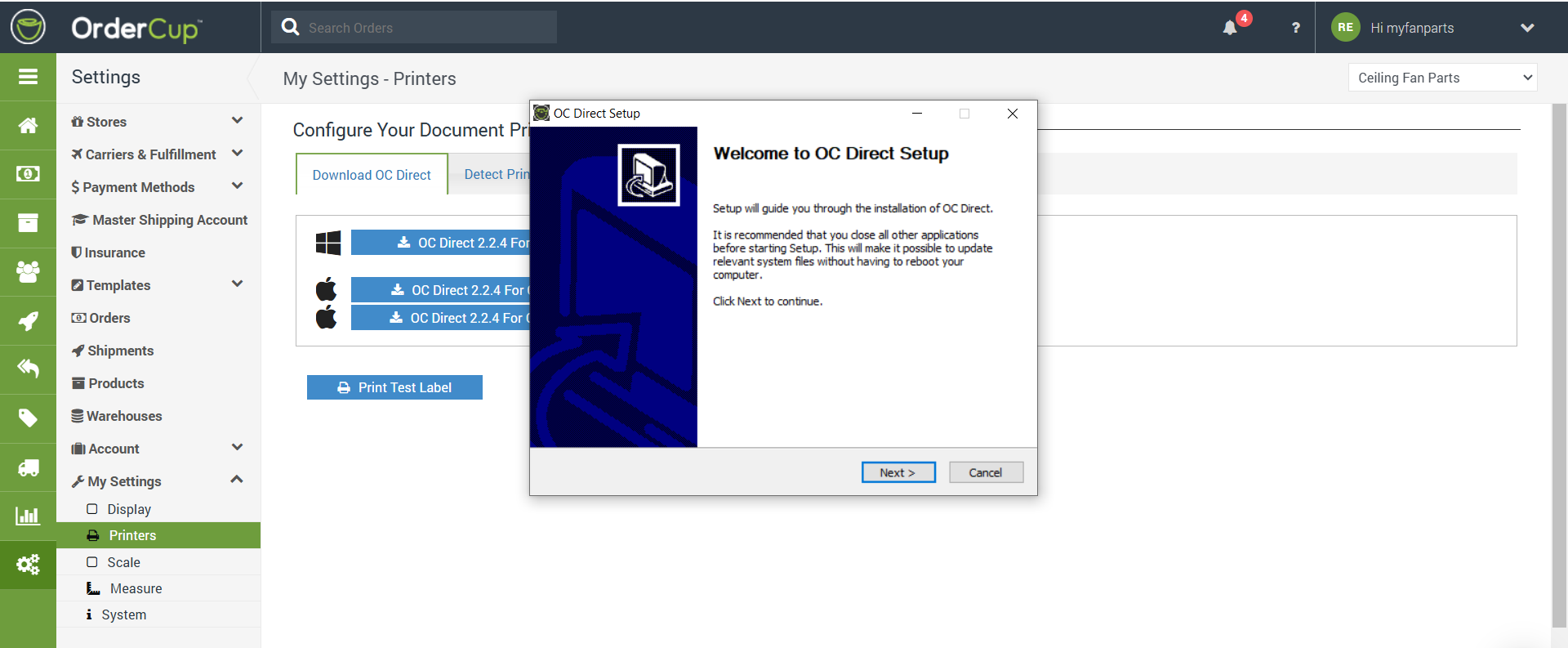
Accept the default setting
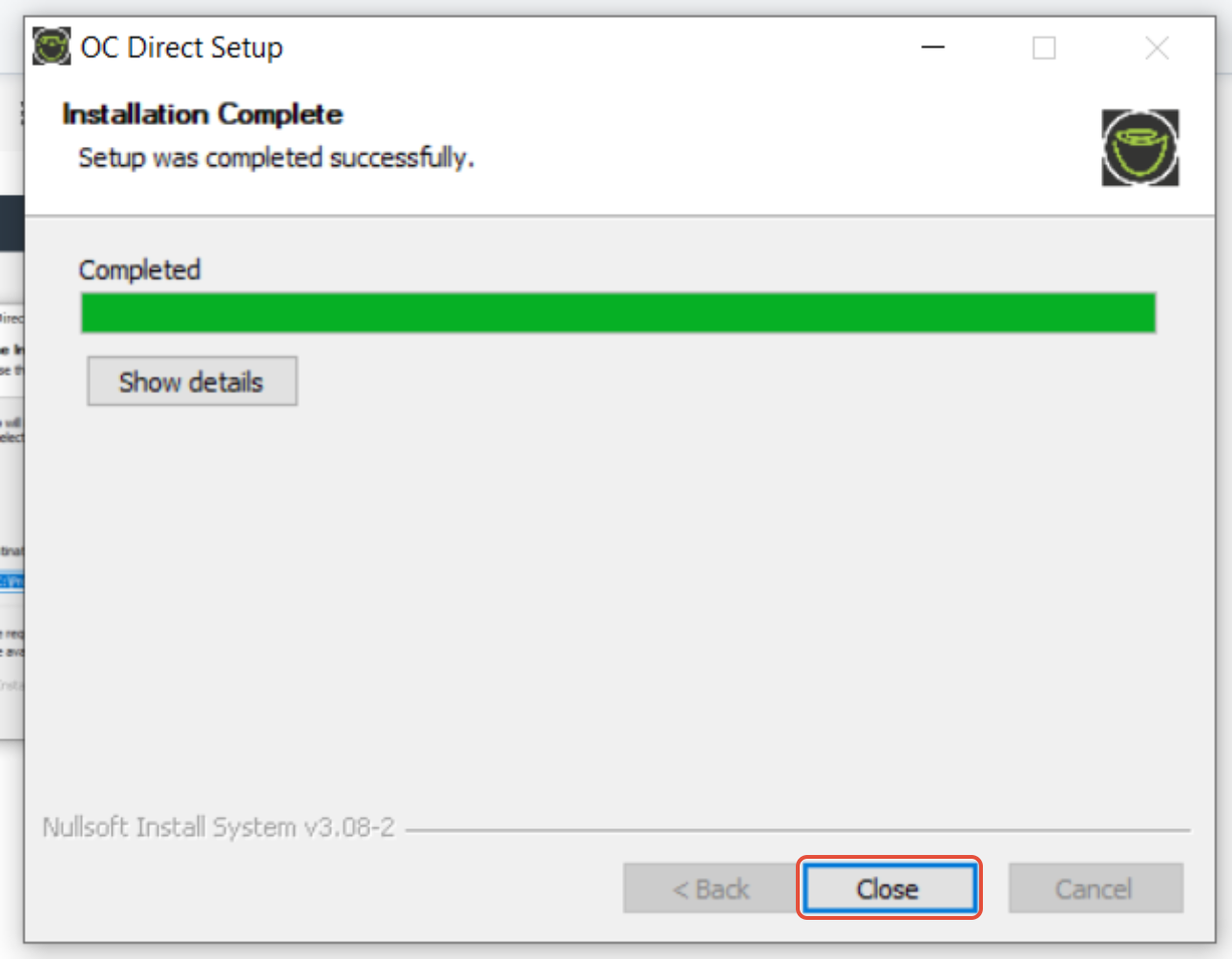
Click close when the installation completes
After the install in OrderCup go to settings, My settings, Printers. The below popup will show make sure to click remember this and then allow

Once OC Direct is installed and running, you will need to detect and save your printers in order to enable direct printing to your configured printers.
Notes & Troubleshooting
- If your setup is blocked by an anti-virus program, please add https://ship.ordercup.com to the exception list so that it can run
- Make sure OC Directis running after installing it (see OC Direct icon in System Tray image below).

- If you do not see the OC Direct icon in the tray list at the bottom right corner, please click on Windows Start Button, search for OC Direct in the "Search Program and Files" text box and click it - this should start OC Direct icon and you should see it in the tray.
- You can also ensure OC Direct starts automatically on every reboot, by clicking on OC Direct Icon in the Tray and clicking the Automatically Start menu.
- If you would like to disable the pop-up alert that appears in the System Tray area with it's associated sound, you can do so from Control Panel --> All Control Panel Items --> Notification Area Icons --> select OC Direct and set the Behavior to Hide icon and notifications and Save it.
- Windows 11 if your printer does not detect you will need the do the following, Open a CMD window and run the following:
set QZ_OPTS=-Dprinter.details.debug=true
Then run this:
"C:\Program Files\OC Direct\oc-direct-console.exe" Once this is completed remove the printer in windows and the reinstall it. Then exit OC Direct and start it manually, go to OrderCup, settings, My settings, printer and click the detect printers button. your printers should detect now.