
Setting Up Your Walmart Store (OAuth 2.0)
OrderCup uses Walmart Marketplace OAuth 2.0 to securely connect your Walmart seller account.
Note: This article applies only to U.S. Stores
Creating a Walmart Store in OrderCup
You can create a Walmart store using the New Store wizard in OrderCup.
Step 1: Start New Store Setup
Login to your OrderCup account.
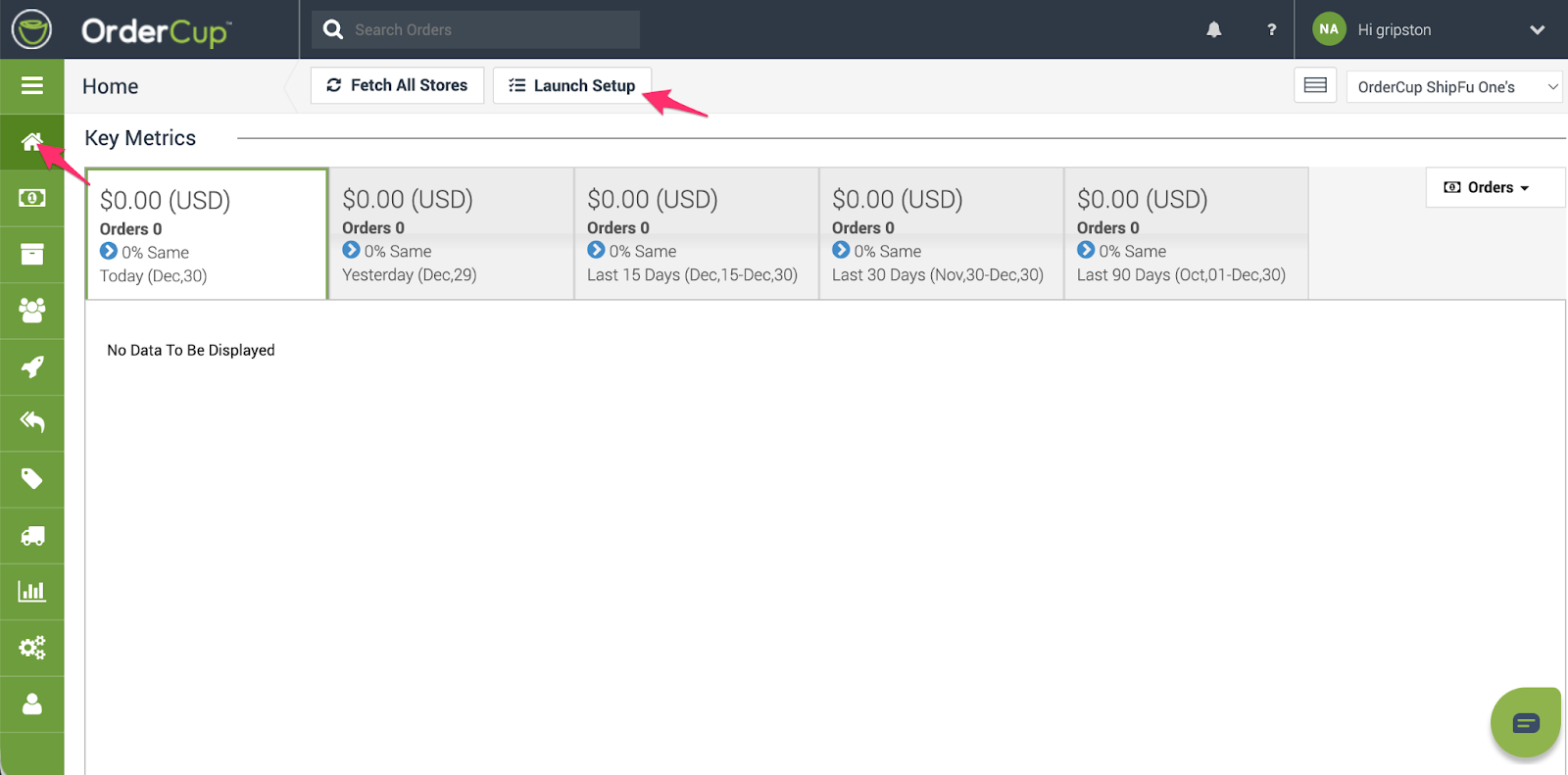
From the Home Tab, click the Launch setup button.
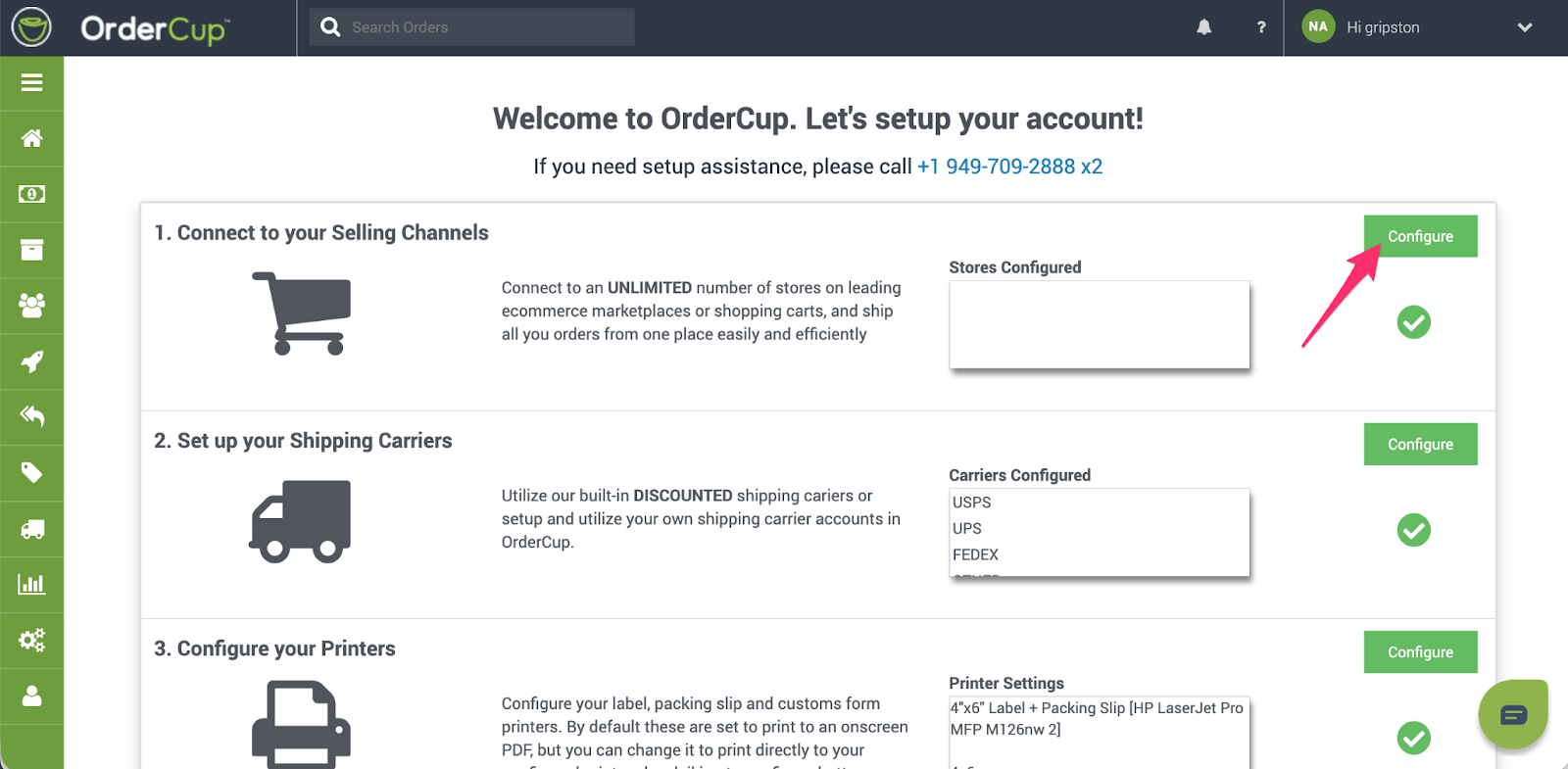
Click the Configure button in the first section Connect to your Selling Channels
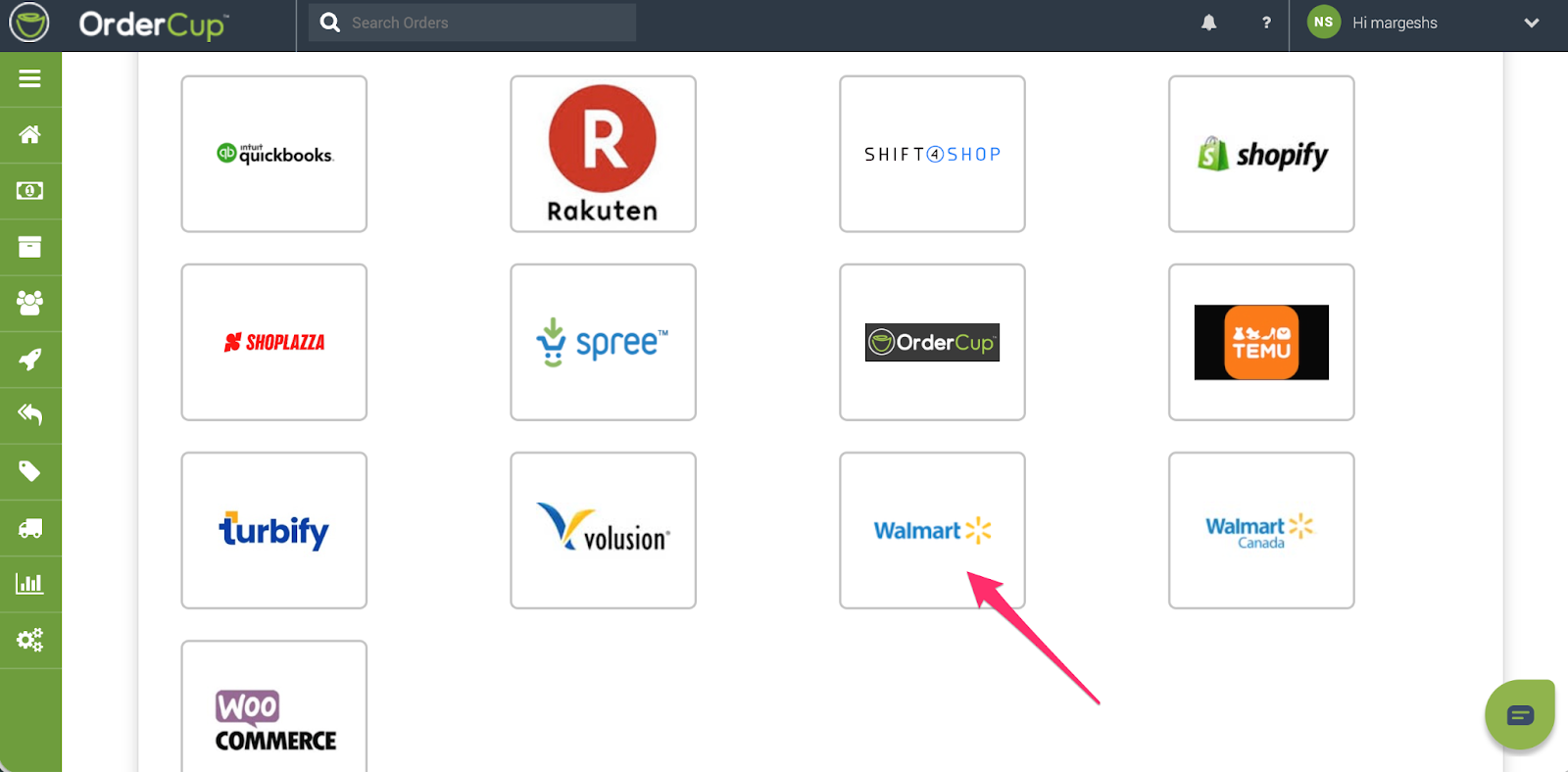
Now select Walmart from the options below. This will open the setup wizard in a popup.
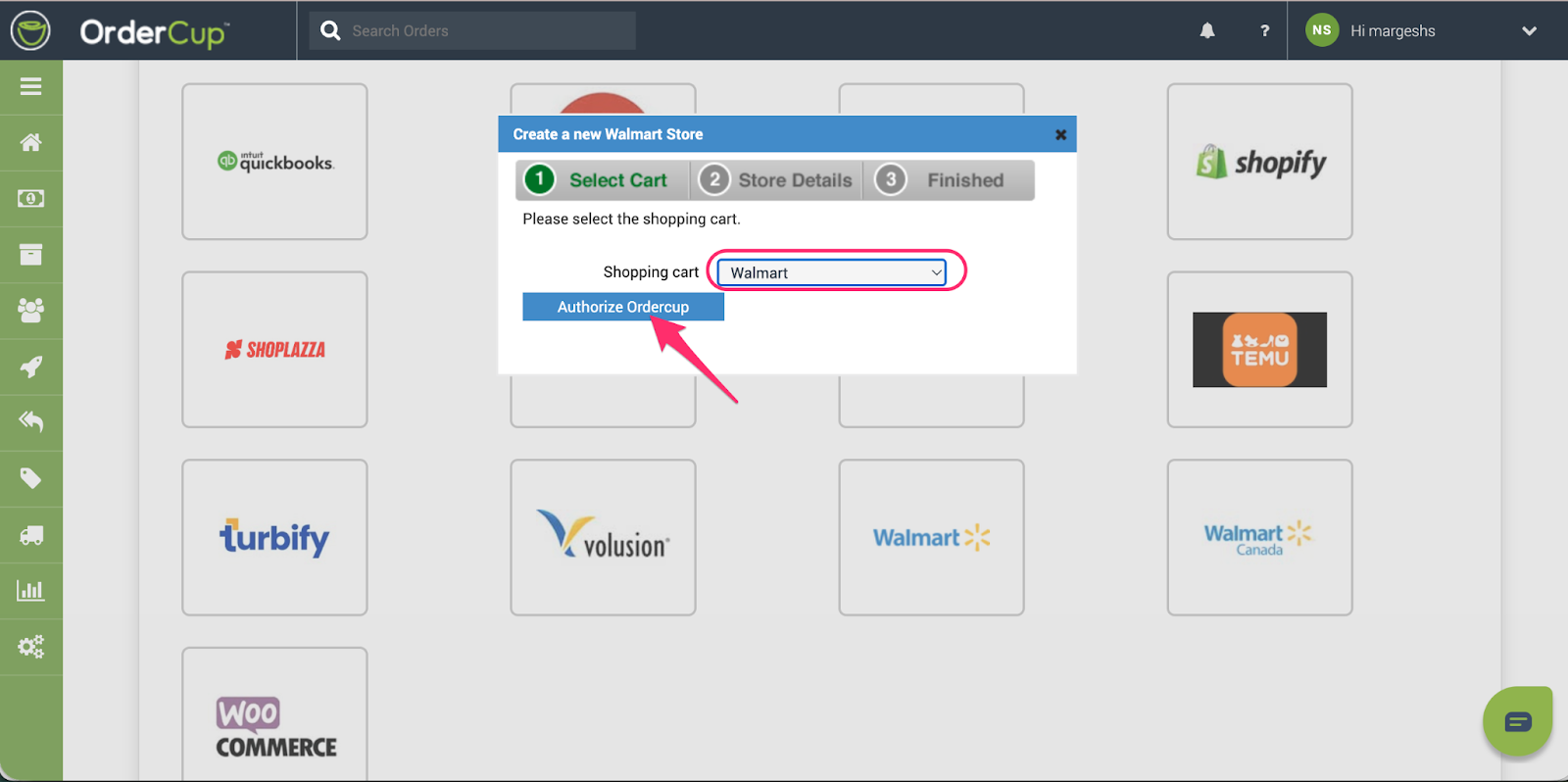
Click Authorize Ordercup button
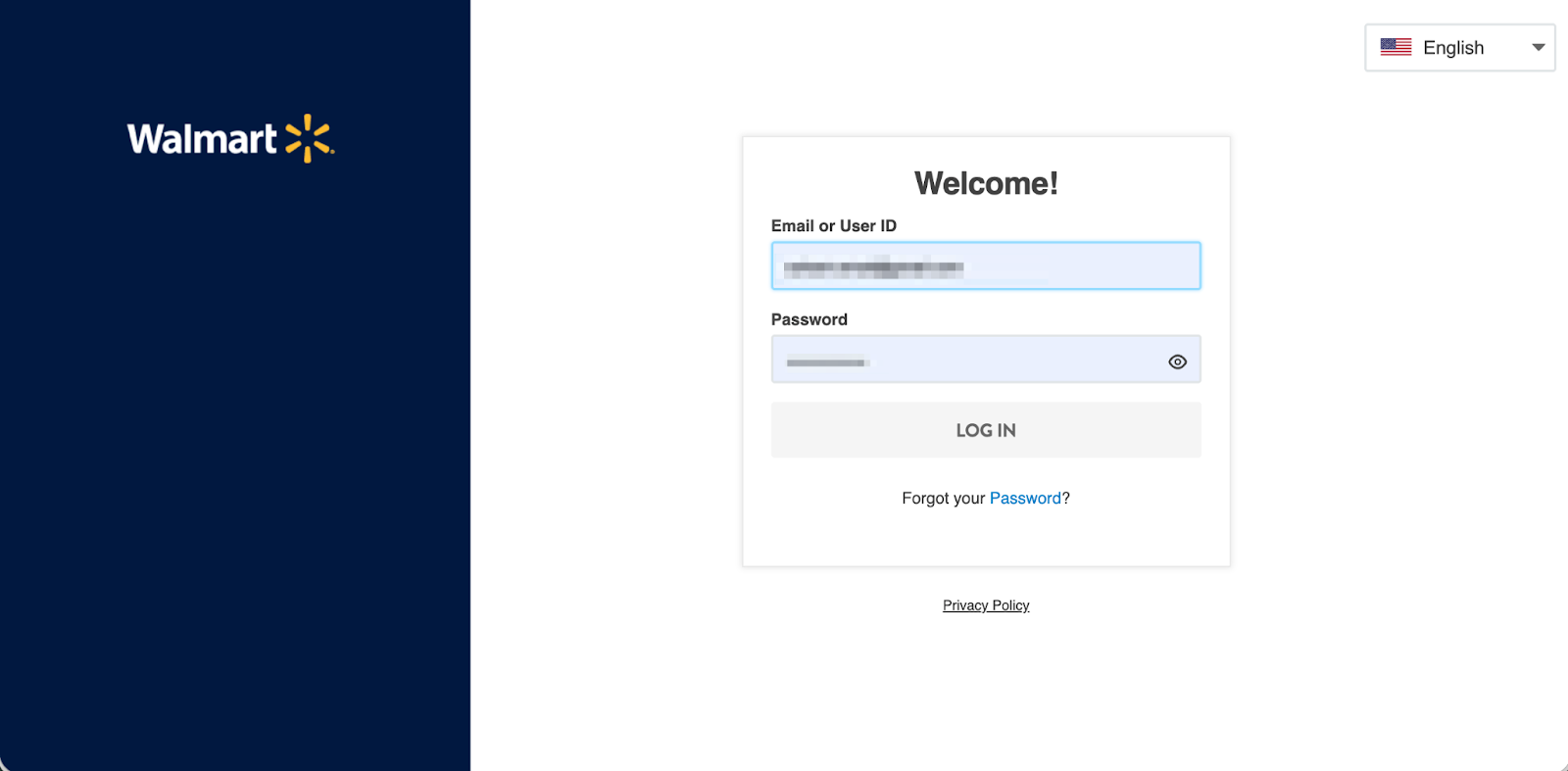
You will be redirected to the Walmart Seller Center login page
Login using your Walmart Seller Center credentials
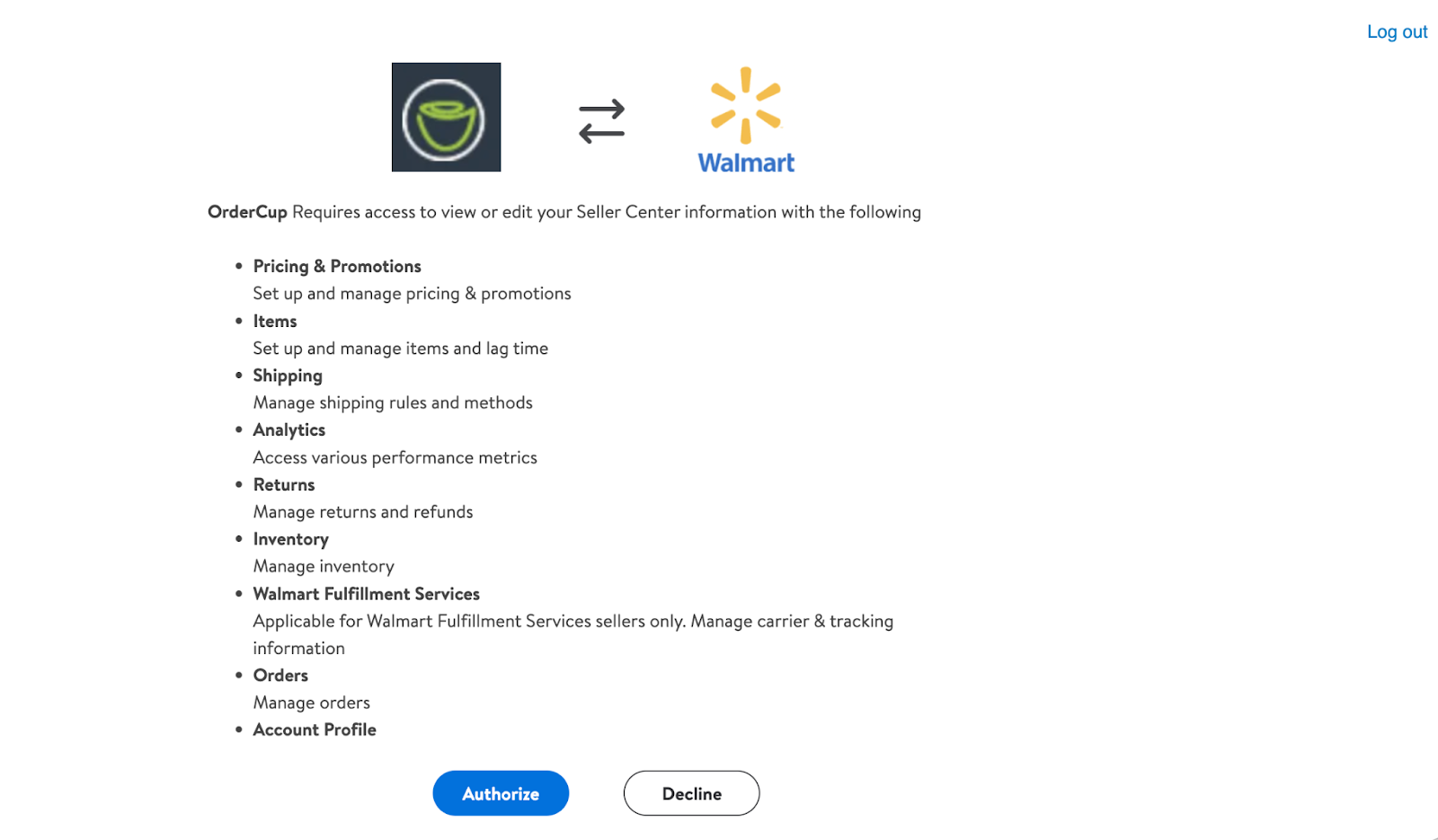
Review the permissions and click Allow / Authorize
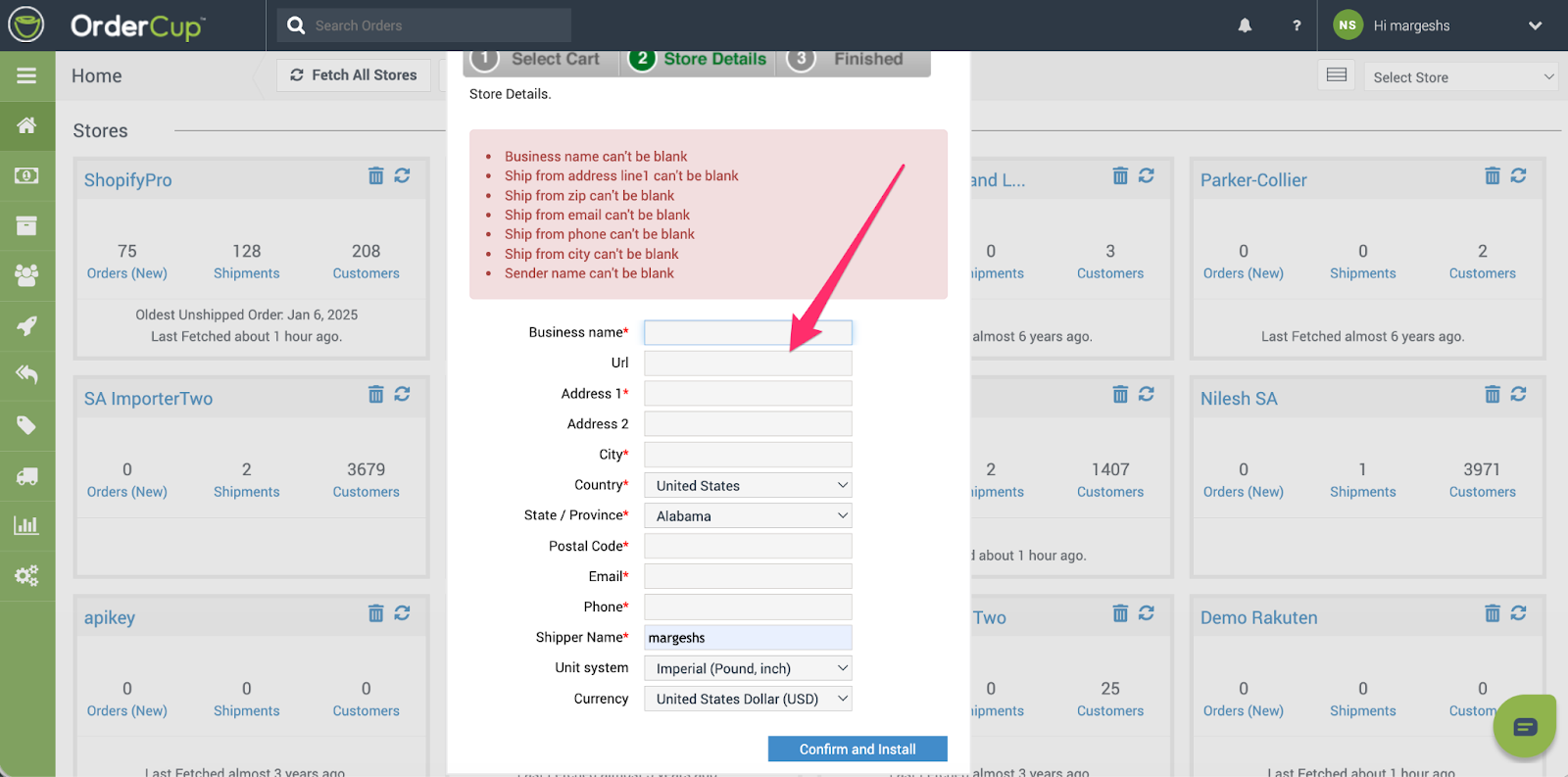
You will then be redirected back to OrderCup
Once you enter all details, just click the Confirm and Install button at the bottom of the wizard popup. (Required fields are marked with a *)
To complete the store creation click Done.
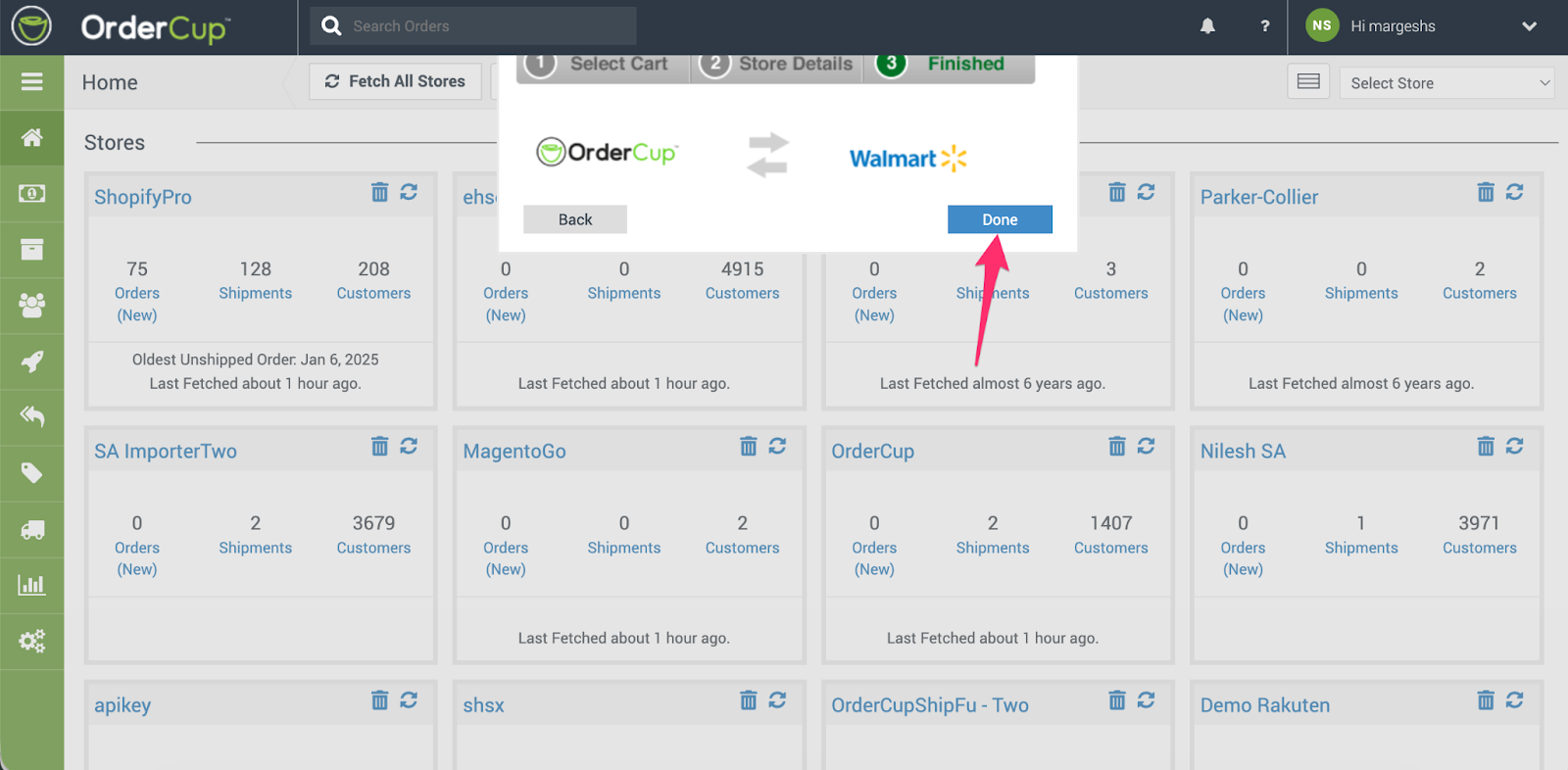
That's it. Your Walmart store is now set up in OrderCup and you will be able to see your Ordercup store orders in OrderCup and be able to ship, batch and print orders among many more using OrderCup.
Re-Authorization (Existing Stores)
If OAuth access was previously configured, the link may display as “Re-Authorize OrderCup”.
Go to Settings → Stores → Details
Select your Walmart store
Click Re-Authorize OrderCup
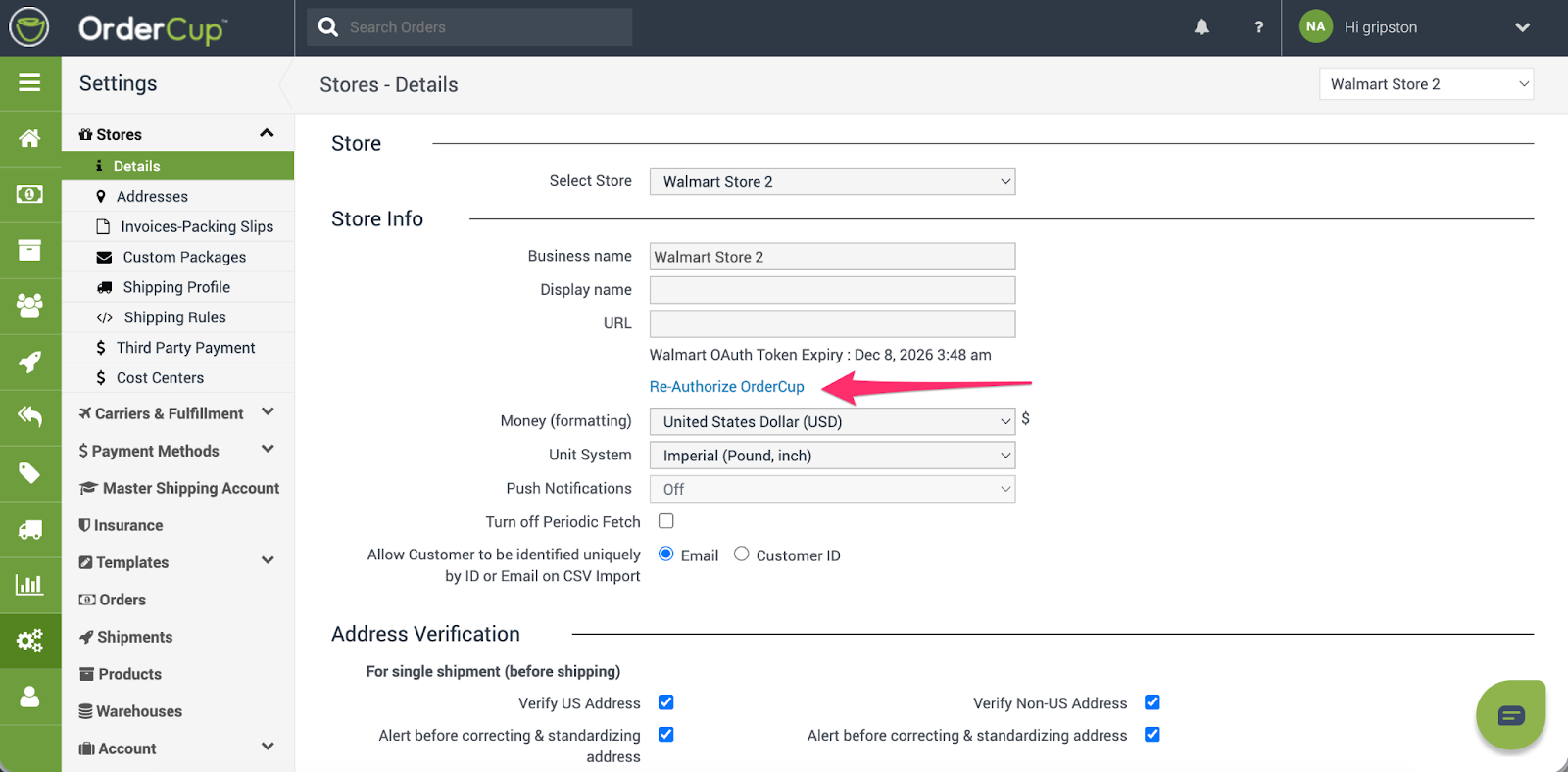
Complete the OAuth 2.0 authorization flow
Re-authorization may be required if access was revoked, permissions changed, or Walmart requires refreshed credentials.
About Walmart OAuth 2.0 Authorization
Walmart OAuth 2.0 allows sellers to securely grant OrderCup access without sharing API keys or secrets.
Benefits of OAuth 2.0
Improved security
No manual credential management
Token-based access with automatic refresh
Easy revocation of access if needed
Need Help?
If you have questions or encounter issues during authorization, please contact:
? OrderCup Support
support@ordercup.com
Happy Shipping!
The OrderCup Team