
How to Allow Google Chrome Access for Third-Party Applications (OC Direct Support)
Overview
When using Google Chrome, you may be prompted to allow a third-party application access to certain features (such as your Google account, files, or system resources). If access was previously denied—or if the app is not prompting you correctly—you may need to manually reset permissions.
This guide explains how to allow access by updating settings directly from the browser address bar so the application can prompt you again.
Prerequisites
Before you begin, ensure you have:
Google Chrome installed and up to date
Access to the application or website requesting permissions
Step 1: Open the Application
Launch Google Chrome
Navigate to the third-party application or website
Step 2: Access Site Settings
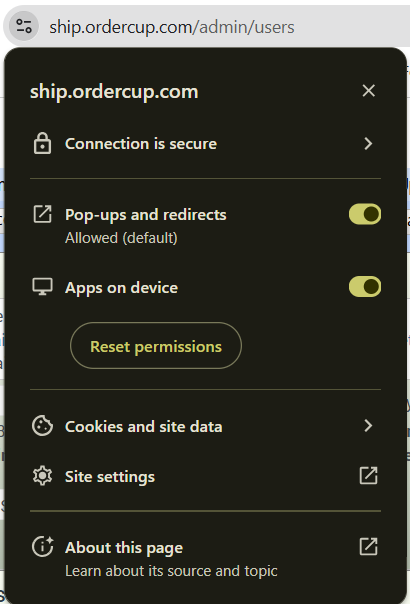
Locate the icon on the left side of the address bar
This may appear as a lock icon, info icon, or settings/tune icon

Click the icon to open site permissions
Step 3: Allow Permissions
Review the listed permissions
Locate the permission related to the application (such as pop-ups, redirects, or access requests)
Change the setting to reset permissions
Step 4: Reset and Reload
Refresh or reload the page
The application should now prompt you again to grant access
Step 5: Grant Access When Prompted
When prompted by the application, select Allow
Confirm any additional permissions if required
Troubleshooting
No Prompt Appears
Ensure permissions are set to Allow
Try clearing browser cache and cookies
Restart the browser
Access Still Blocked
Verify pop-ups are not blocked
Check Chrome settings under Privacy and Security
Summary
To allow a third-party application access in Google Chrome:
Click the icon in the address bar
Set permissions to Allow
Refresh the page
Accept the access prompt
This process resets permissions and ensures the application can properly request access again.